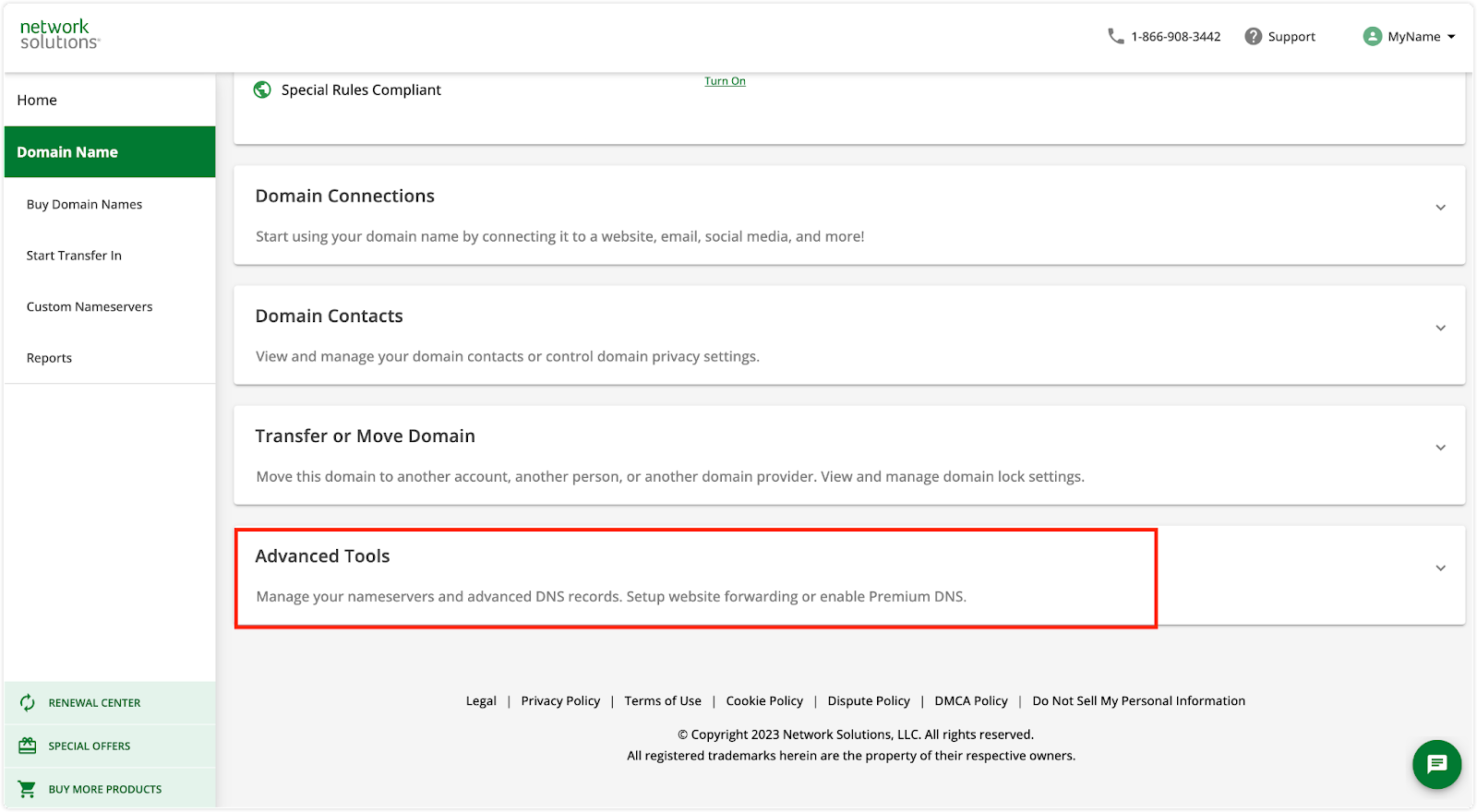
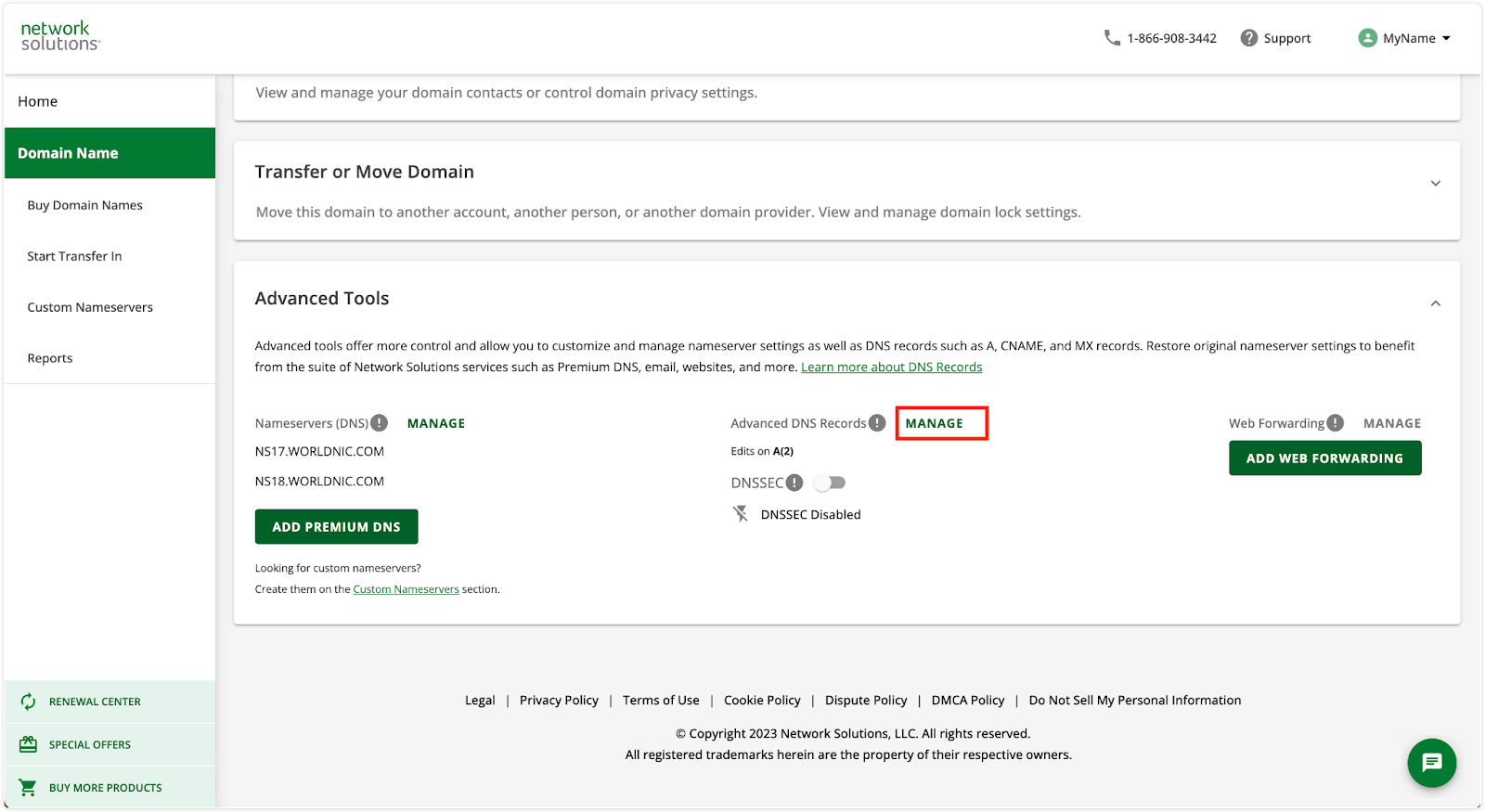
Find the “Advanced DNS Records” option and click "Manage".
Click “Add record” button.
Under Type, select “CNAME”
Set the "Refers to" dropdown to "Others".
Copy and paste one CNAME record. Specifically, copy the “Name” from Strikingly and paste to “Host Name”, and copy the “Value” from Strikingly and paste to “Alias to”.
Select the TTL as 1 hour.
Repeat steps 4-8 to add two more CNAME records.
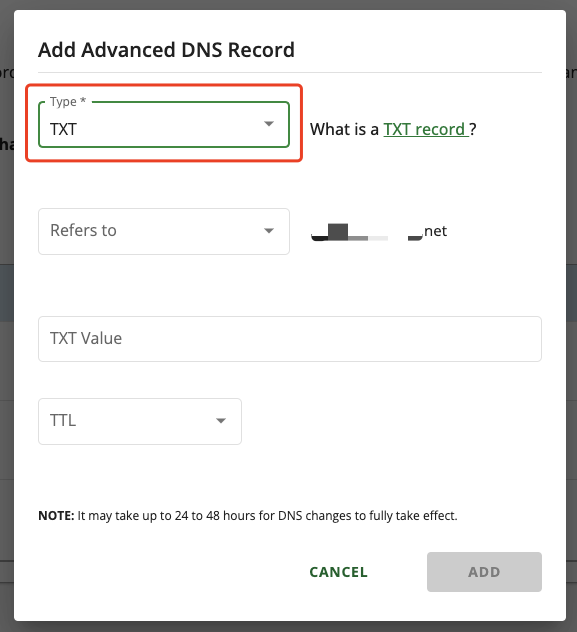
Add one more record and set the Type to TXT.
Set the "Refers to" dropdown to "Others".
Copy and paste the “Name” and “Value” of the TXT record.
Select the TTL as 1 hour.
Step 3: Wait for the Records to Take Effect
After you’ve confirmed the above setup, go back to your Strikingly site editor and click the "I've added, start checking" button in the popup.
We’ll automatically detect your DNS records. please allow up to 48 hours for the changes in the domain records to take effect globally.
After we detect the correct values, you’ll be notified by email immediately. You’ll also see a green message here, indicating that you've successfully set up DKIM authentication for your domain.
If we can’t detect the correct values after 48 hours, you’ll be notified by email. You’ll need to make sure that you’ve completed Steps 1-3 and try again. As always, you can contact us for support!