
This guide walks you through connecting your subdomain to your Strikingly site. If your domain doesn't start with "www.", such as shop.example.com or blog.example.com, this tutorial is for you.
- If you're connecting a domain that starts with "www.", you can visit Connecting Domains to Your Strikingly Site.
- You can send this tutorial to your registrar’s support team if you need help. Or, contact us anytime for additional help.
Catalog
- Step 1: Connect to Your Custom Domain on Strikingly
- Step 2: Find Network Solutions DNS settings
- Step 3: Clean up your DNS records
- Step 4: Add a CNAME record on Network Solutions
- Step 5: Confirm your setup is complete
Step 1: Connect to Your Custom Domain on Strikingly
1. Go to your Strikingly site editor, and click SETTINGS > Domains.
2. Enter your custom domain in the "Connect a Domain You Already Own" box, such as "yourdomain.com". (without https:// or http:// or /).
3. Click "UPDATE".

4. Choose Network Solutions as your domain provider and click “Read Tutorial".
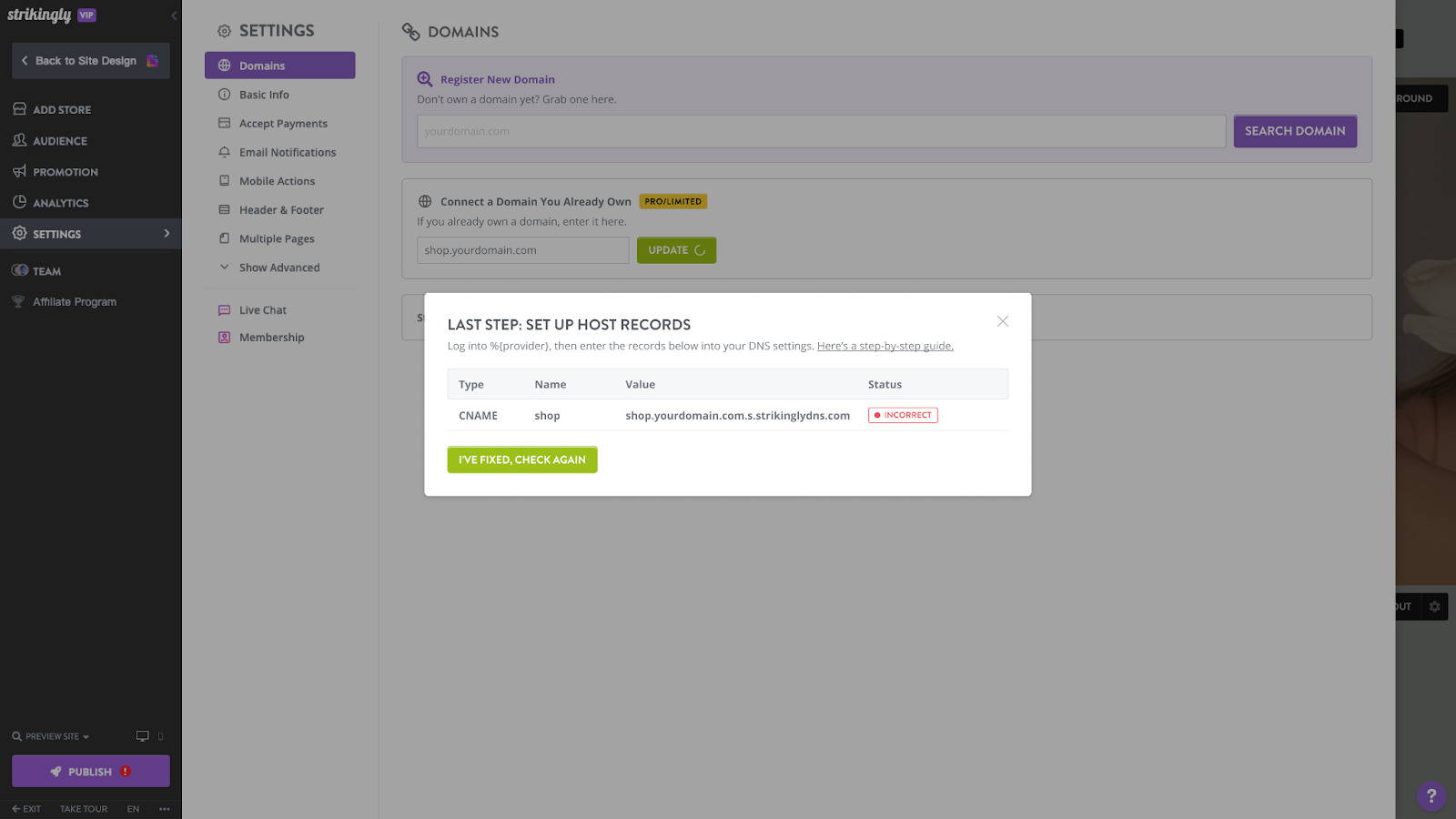
5. You will see a pop-up displaying the records you must set in your domain settings.
Step 2: Find Network Solutions DNS settings
1. Sign in to your Network Solution account.
2. Click "Domain Name".

3. Scroll down and click "Advanced Tools".

4. Find the “Advance DNS Records” option and click "Manage".

Step 3: Clean up your DNS records
1. Look for any CNAME record named with your hostname and click the pencil icon beside the record.

2. Click “Delete” at the upper right corner

Step 4: Add a CNAME record on Network Solutions
1. Click on the “Add record” button.

2. Select CNAME as the record type

3. Set the "Refers to" dropdown to Other Host.

4. Copy the relevant information from Strikingly and paste it into the corresponding places, as shown in the image below.

5. Select the TTL as 1 hour.

Step 5: Confirm your setup is complete
1. After you’ve confirmed the above setup, go back to your Strikingly site editor and click the "I've fixed, check again" button in the pop-up.

2. If you've configured your DNS settings correctly, the pop-up will close and the domain status will show as "Connected".

3. If you haven't configured your DNS correctly, the pop-up will display the error status, and you should go back to step 3 to reconfigure the DNS records correctly.

If your site doesn't go online after 48 hours, contact us at support@strikingly.com or chat with us and include a screenshot of your domain settings so we can help!