
This guide walks you through connecting your subdomain to your Strikingly site. If your domain doesn't start with "www.", such as shop.example.com or blog.example.com, this tutorial is for you.
- If you're connecting a domain that starts with "www.", you can visit Connecting Domains to Your Strikingly Site.
- You can send this tutorial to your registrar’s support team if you need help. Or, contact us anytime for additional help.
Catalog
- Step 1: Connect to Your Custom Domain on Strikingly
- Step 2: Find 1&1 IONOS's DNS settings
- Step 3: Clean up your DNS records
- Step 4: Add a CNAME record
- Step 5: Confirm your setup is complete
Step 1: Connect to Your Custom Domain on Strikingly
- Go to your Strikingly site editor, and click SETTINGS > Domains.
-
Enter your custom domain in the "Custom Domain/Subdomain" box, such as "shop.yourdomain.com". (without https:// or http:// or /).
-
Click UPDATE.
-
Choose “1&1 ”as your domain provider and click “Read Tutorial".
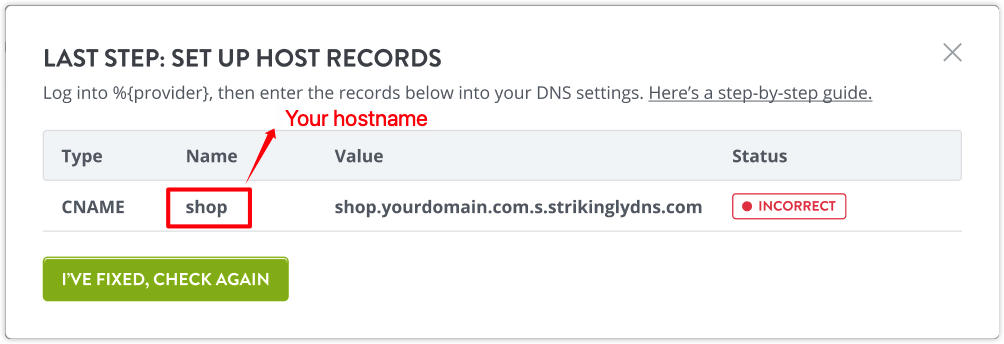
- You will see a popup that displays the records you'll need to set in your domain settings.


Step 2: Find 1&1 IONOS's DNS settings
- Sign in to your IONOS by 1&1 account.
- Click on “Menu” and choose "Domains & SSL".

- Click the gear icon inline with the domain you'd like to connect, and click “DNS”.
- Choose to display all records.


Step 3: Clean up your DNS records
- Look for any CNAME record named with your hostname and delete it.
- Look for the CNAME record named “_domainconnect” and disable it.


Step 4: Add a CNAME record
- Click Add record, and select CNAME type
- Copy the relevant information from Strikingly and paste it into the corresponding places, as shown in the image below.


Step 5: Confirm your setup is complete
- After you’ve confirmed the above setup, go back to your Strikingly site editor and click the "I've fixed, check again" button in the pop-up.
- If you've configured your DNS settings correctly, the pop-up will close and the domain status will show as "connected".
- If you haven't configured your DNS correctly, the popup will display the error status, and you should go back to step 3 to reconfigure the DNS records correctly.


Take note that any DNS changes may take within 24–48 hours to update. Make sure to monitor the DNS records to ensure it updates correctly.